레벨과 커브 테이블
- 게임플레이 이펙트에는 추가적으로 레벨 정보를 지정할 수 있다.
- 게임플레이 이펙트에 저장된 레벨 정보를 사용해 데이터 테이블에서 특정 값을 가져올 수 있다.
- ScalableFloat Modifier타입에서 사용하는 것이 가능하다.
- 커브 테이블은 Unreal 에디터에서 쉽게 제작이 가능하다.
예시
- 콤보 추가 시 증가하는 요율을 반영해 최종 데미지 계산
- 현재 캐릭터 레벨에 따른 초기 스탯 적용
Curve Table 생성 방법


Miscellaneous - Curve Table을 선택하고
어떤 Curve Table인지 Type을 정하면 된다.

제일 오른쪽 버튼으로 행을 추가할 수 있다.

다음과 같이 행을 추가하고
이제 콤보 Montage에 쓰이는 Notify의 헤더와 cpp에 다음과 같이 추가한다.
	//현재 콤보 레벨
	UPROPERTY(EditAnywhere)
	float  ComboAttackLevel;
    ---------------------------
void UAnimNotify_GASAttackHitCheck::Notify(USkeletalMeshComponent* MeshComp, UAnimSequenceBase* Animation, const FAnimNotifyEventReference& EventReference)
{
	Super::Notify(MeshComp, Animation, EventReference);

	if (MeshComp)
	{
		AActor* OwnerActor = MeshComp->GetOwner();
		if (OwnerActor)
		{
			FGameplayEventData PayloadData;
			//이 PayloadData의 강도를 넣는 것이다.
			PayloadData.EventMagnitude = ComboAttackLevel;
			//ASC를 가지고 있는 Actor에 Tag를 넣어서 이벤트를 발동시키는 함수이다.
			//여기서 PayloadData가  발동 시킨 TriggerGameplyaTag로 인해 Effect의 ActivateAbility의 TriggetDataEvent로 들어가게 된다.
			UAbilitySystemBlueprintLibrary::SendGameplayEventToActor(OwnerActor, TriggerGameplayTag, PayloadData);
		}
	}
}
TriggerGameplayTag로 인해 발동할 어빌리티에 PayloadData를 넘기게 되는데
이 PayloadData에 현재 Notify가 몇 레벨인지 넣어준다.
void UABGA_AttackHitCheck::ActivateAbility(const FGameplayAbilitySpecHandle Handle, const FGameplayAbilityActorInfo* ActorInfo, const FGameplayAbilityActivationInfo ActivationInfo, const FGameplayEventData* TriggerEventData)
{
	Super::ActivateAbility(Handle, ActorInfo, ActivationInfo, TriggerEventData);

	CurrentLevel = TriggerEventData->EventMagnitude;

	//AbilityTask를 생성함.
	UABAT_Trace* AttackTraceTask = UABAT_Trace::CreateTask(this, AABTA_Trace::StaticClass());
	//AbilityTask가 끝났을 때 OnTraceResultCallback 수행.
	AttackTraceTask->OnComplete.AddDynamic(this, &ThisClass::OnTraceResultCallback);
	//Task를 실행시킨다.
	AttackTraceTask->ReadyForActivation();
}
TriggerGameplayTag로 인해 발동되는 ABGA_AttackHitCheck에서
들어온 TriggerEventData에 방금 넣었던 레벨 정보를 CurrentLevel에 캐싱한다.
void UABGA_AttackHitCheck::OnTraceResultCallback(const FGameplayAbilityTargetDataHandle& TargetDataHandle)
{
...
		FGameplayEffectSpecHandle EffectSpecHandle = MakeOutgoingGameplayEffectSpec(AttackDamageEffect, CurrentLevel);
		if (EffectSpecHandle.IsValid())
		{
			//EffectSpecHandle에 Data.Damage Tag를 키로하고  -SourceAttribute->GetAttackRate()값을 넣는다.
			EffectSpecHandle.Data->SetSetByCallerMagnitude(ABTAG_DATA_DAMAGE, -SourceAttribute->GetAttackRate());

			//인자 - 어빌리티의 SpecHandle, 어빌리티에 관련된 현재 액터 정보, 어빌리티의 발동된 정보, 발동시킬 Effect 정보, TargetHandle 정보.
			ApplyGameplayEffectSpecToTarget(CurrentSpecHandle, CurrentActorInfo, CurrentActivationInfo, EffectSpecHandle, TargetDataHandle);

		}
	}
...
}
그리고 OnTraceResultCallback의 EffectSpecHandle에 넣는 MakeOutgoingGameplayEffectSpec에 두번째 인자로 CurrentLevel을 넣어준다. 넣어주지 않으면 기본값인 1이 들어간다.
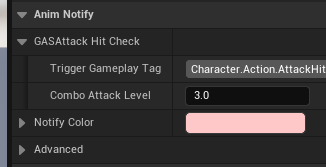
이제 Anim Notify에 해당 Level 값을 넣어주고

AttackDamage GameplayEffect로 가서
곱하는 값인 Coefficient에 만든 ComboDamageTable을 넣고
어떤 열을 사용할 것인지 (ComboDamage) 지정하면 옆의 Preview 스크롤로 언제 어떤 값을 나타내는지 볼 수 있다.
현재는 3 level에 알맞게 1.3이 나오는 것을 확인 가능하다.

직접 실행해서 로그로 확인해보면 값이 변화하는 것을 확인 가능하다.
'Unreal 게임 개발 > Unreal 강의 개인 정리' 카테고리의 다른 글
| Attribute Set UI로 표시 - GAS (0) | 2025.08.25 |
|---|---|
| EffectContext & Spec Handle / 캐릭터 레벨 스탯 변화 - GAS (0) | 2025.08.25 |
| 메타 어트리뷰트 - GAS (1) | 2025.08.24 |
| 게임플레이 이펙트 & Modifier (+예시) - GAS (0) | 2025.08.24 |
| 캐릭터 어트리뷰트 & 데미지 입히기(Attribute 사용) - GAS (0) | 2025.08.23 |